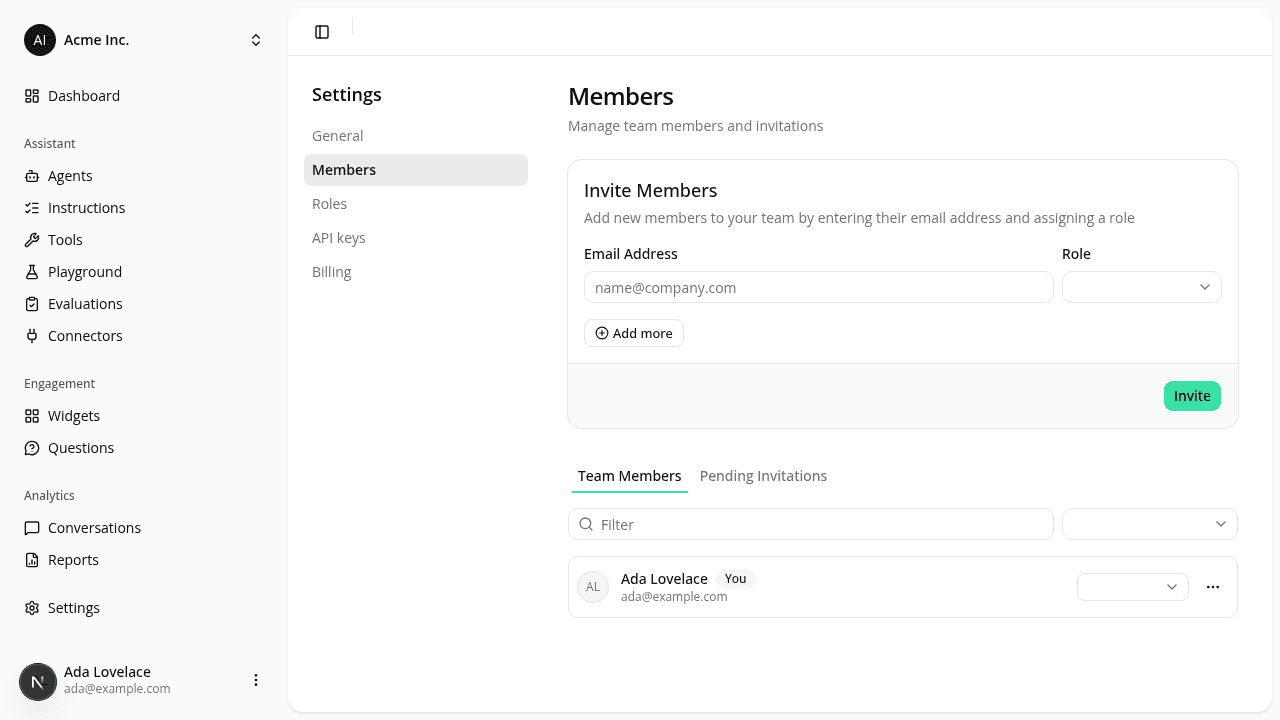
A faster Members page: invite several people at once, search, and filter
ChangedManaging who has access to your organization got quicker.
- Invite several people at once. The Invite Members card now takes more than one row: enter an email and pick a role, click Add more, and repeat. One Invite button sends the whole batch. Each row is checked on its own, so one bad address (already a member, already invited, your own email, or the same address twice in the list) is skipped with its own message while the valid ones still go out. If some send and some don't, you're told how many of each.
- Two tabs. Members are now split into Team Members and Pending Invitations, so a long list is easier to scan.
- Search and filter by role. Each tab has a filter bar: type to find someone by name or email, and narrow the list to Admins or Members only.
- Invitations show up alongside your team. A teammate you've invited but who hasn't joined yet appears in Team Members with an Invitation Sent badge, as well as in the Pending Invitations tab, with the dates it was sent and expires.
- Per-row actions moved into a menu. Remove a member, leave the organization, or revoke an invitation from the … menu on that row.
- Resend a pending invitation. The … menu on a pending invitation now has a Resend invitation item that re-sends the invitation email. Handy when a teammate lost or never got the first one, as long as the invitation is still pending.
Nothing changed about who can do what. Only Admins can invite, remove, revoke, or change roles; Members keep read-only visibility and can still leave on their own. The guards that keep at least one member and one Admin in every organization are unchanged.
See Members for the full walkthrough.
Updated later
As of 2026-07-16, managing members is no longer limited to Admins: anyone whose role holds the Members: Edit permission can invite, remove, revoke, and change roles, and you can assign any role (built-in or custom), not just Admin or Member. The "only Admins can" note above describes how it worked at release. See Roles.
Resources